1. Product overview
Nothing is easier than using TWINT, and now it’s available for Swiss QR bills too.
With TWINT invoice, your customers can pay QR bills quickly, securely and easily with the TWINT app, anytime and anywhere. Activate TWINT for your Swiss QR bills and discover the benefits.
Enjoy faster incoming payments via Switzerland’s most popular payment app with 6 million active users.
Create QR bills as before and send them by post or e-mail. There’s no need to change anything.
You can also easily convert any QR bill into an HTML button or payment link. This means all the invoice details will be embedded in a button or link. You can find detailed instructions on how to do this here.
Customers scan the invoice with TWINT, select the execution date and confirm the payment. The invoice amount will be transferred to the account you have saved in TWINT on the execution date.
Please note that TWINT collects invoice amounts on a daily basis and transfers the amount as a net collective payment (invoice amount minus the TWINT fee).
As soon as the transfer is made to your bank account, you can check the payment confirmation for all invoices in two ways:
- TWINT Business Portal
- SFTP (camt.054 file), on request
You can upload the reports to your accounting software if you need to.
You can find the fee per completed transaction in our price sheet.
The TWINT fee will be deducted directly from the invoice amount when payment is made.
TWINT may only be used to collect payment for Swiss QR bills after goods or services have been delivered or provided to the consumer. You can find a detailed explanation here.
Your QR bill must be marked accordingly to make customers aware of the TWINT payment option. You can find detailed instructions in our design guidelines.
2. Payment process
This diagram illustrates the payment process for a TWINT invoice across all parties involved (customers, merchants, the TWINT scheme and the acquirer) and the chronological sequence of how the money is transferred (processed on T+2).
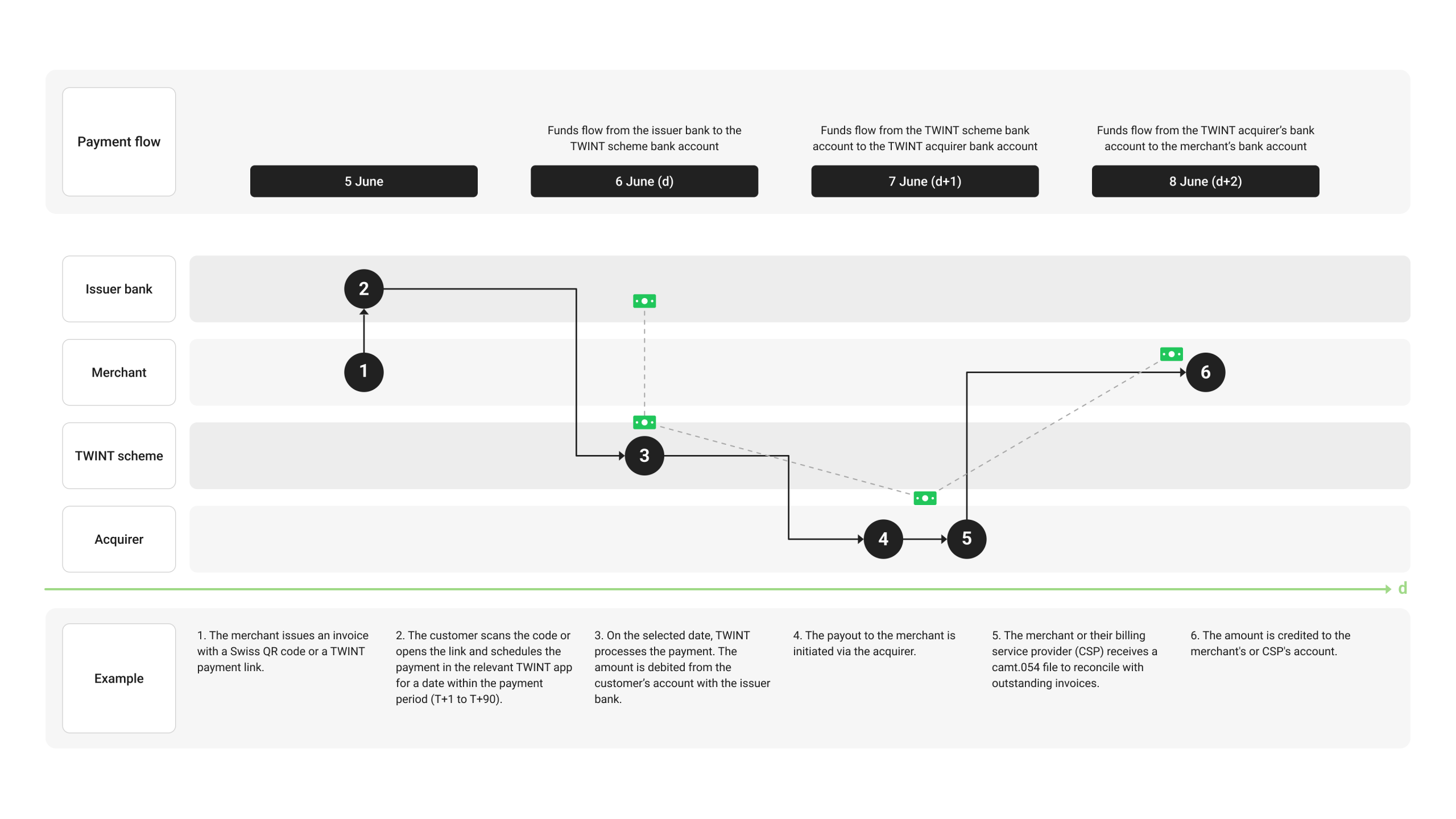
The money flow takes place in three consecutive steps:
- From the customer’s bank to the TWINT scheme bank account (T)
- From the TWINT scheme bank account to the TWINT acquirer bank account (T+1)
- From the TWINT acquirer bank account to the merchant or CSP bank account (T+2)
The amount will be credited to the merchant account two working days after the payment instruction (T+2).
Step 0: receipt of invoice and confirmation of payment
- The customer receives a Swiss QR bill – from a merchant or utility company, for example – via post, e-mail or a digital customer portal
- The customer scans the QR code using the TWINT app or taps on the payment link, selects the execution date and confirms the payment
Step 1: payment execution in the TWINT scheme (T)
- The amount is transferred from the customer’s bank to the TWINT scheme bank account
- The scheduled payment is executed in the TWINT scheme
Step 2: payment and provision of data (T+1)
- The amount flows from the TWINT scheme bank account to the TWINT acquirer bank account
- The payment is executed and transmitted to the payment bank
- The camt.054 file is generated and made available to the merchant or CSP
Step 3: credit to merchant account (T+2)
- The bank transfer to the merchant or CSP account is executed
- The invoice amount (minus the TWINT fee; net) is credited to the merchant bank account
3. Technical integration
There are two complementary integration options available for the technical integration of the TWINT payment function. Both options are based on data from the Swiss QR bill and enable the payment process to be initiated easily and securely via TWINT.
The first option is the QR bill, which can be integrated directly into existing invoicing or payment processes. Alternatively, an online button can be used to initiate the payment process directly from an app, a portal, an e-mail or another application via a TWINT payment link (paylink).
The following sections describe both integration options, their technical requirements and the relevant specifications for implementation in the live environment.
Swiss QR bills do not need to be modified or expanded to be used with TWINT invoice. Billers can continue to use their existing invoicing and ERP processes as they are.
Technical implementation is limited to the registration and activation of the biller for TWINT invoice. As part of the onboarding process, the relevant account details (IBAN or QR IBAN) are stored with TWINT. Once activation is complete, existing Swiss QR bills can be recognised and paid via all TWINT apps.
Unlike QR bills, integrating online buttons requires a degree of technical implementation on the part of the biller. This involves generating a TWINT payment link using the QR bill data and embedding it in e-mails, customer portals or apps via a button or link.
The payment link forms the technical basis of the integration process. The online button visually displays this payment link and enables the user to initiate the payment process in the TWINT app.
A payment link is used to initiate a TWINT payment. It contains all the relevant invoice information for a Swiss QR bill and is processed by the TWINT app.
Payment link structure
The payment link is structured as follows:
https://go.twint.ch/qrbill#< ENCODED_PAYLOAD >
Please bear the following in mind:
- https://go.twint.ch/qrbill is the base URL
- < ENCODED_PAYLOAD > contains the data from the Swiss QR bills
- The payload must be UTF-8-encoded and URL-encoded
Base URL (static)
The base URL is static and cannot be changed:
https://go.twint.ch/qrbill
It serves as the entry point for the TWINT app to process the invoice data.
Payload (dynamic)
The payload contains the data from a Swiss QR bill in Swiss Payment Code (SPC) format and is attached to the base URL.
The payload must have the following characteristics:
- UTF-8-encoded
- URL-encoded
- Generated individually for each invoice
This means the final structure is as shown below.
The following set of QR bill data
SPC\n0200\n1\nCH4431999123000889012\nS\nSchreinerei Habegger & Söhne\nTeststrasse\n69\n8045\nZürich\nCH\n\n\n\n\n\n\n\n\nCHF\nS\nTest User\nTestweg\n10\n8045\nZürich\nCH\nQRR\n000000000000000000000123457\nOrder from 02.03.2026\nEPD\n\n
will produce this payment link
Payload structure
The payload is based on the SPC standard and meets the requirements of the Swiss QR bill. All invoice information is transmitted in a defined field structure and then coded.
The required information includes details of the payee, the IBAN or QR IBAN, the currency and the reference details. The full field definition is set out in the following table and is based on the specifications for the Swiss QR bill.
| Row | Field | Description | Value | Explanation | Status (Rule) |
|---|---|---|---|---|---|
| 1 | QRType | Identification of the QR bill type | SPC | Fixed value = Swiss Payment Code | Mandatory (fixed value) |
| 2 | Version | Version of the standard | 0200 | Current version (v2.0) | Mandatory (fixed value) |
| 3 | Coding | Character set | 1 | 1 = UTF-8 | Mandatory (fixed value) |
| 4 | IBAN | Payee’s account | CH4431999123000889012 | QR-IBAN (IID 30000–31999) or NON-QR-IBAN | Mandatory |
| 5 | Cdtr.AdrTp | Payee address type | S | S = structured address | Mandatory (S or K allowed) |
| 6 | Cdtr.Name | Name of payee | Habegger & Söhne | Company Name | Mandatory |
| 7 | Cdtr.StrtNmOrAdrLine1 | Street | Test Street | Structured address | Mandatory for S |
| 8 | Cdtr.BldgNbOrAdrLine2 | House number | 69 | Separate information | Mandatory for S |
| 9 | Cdtr.PstCd | Postcode | 8045 | Swiss postcode (“CH-” prefix) | Mandatory for S/td> |
| 10 | Cdtr.TwnNm | Town/city | Zurich | Mandatory for S | |
| 11 | Cdtr.Ctry | Country | CH | ISO 3166-1 | Mandatory |
| 12 | UltmtCdtr.AdrTp | Ultimate Creditor type | Must be blank (not permitted) | ||
| 13 | UltmtCdtr.Name | Ultimate Creditor name | Must be blank (not permitted) | ||
| 14 | UltmtCdtr.StrtNmOrAdrLine1 | Address | Must be blank (not permitted) | ||
| 15 | UltmtCdtr.BldgNbOrAdrLine2 | Address | Must be blank (not permitted) | ||
| 16 | UltmtCdtr.PstCd | Postcode | Must be blank (not permitted) | ||
| 17 | UltmtCdtr.TwnNm | Town/city | Must be blank (not permitted) | ||
| 18 | UltmtCdtr.Ctry | Country | Must be blank (not permitted) | ||
| 19 | Amt | Amount | Must be blank (not permitted) | ||
| 20 | Ccy | Currency | CHF | Only CHF permitted | Mandatory |
| 21 | UltmtDbtr.AdrTp | Payer address type | S | Structured address | Optional (if set → consistent) |
| 22 | UltmtDbtr.Name | Name of payer | test user | Optional | |
| 23 | UltmtDbtr.StrtNmOrAdrLine1 | Street | Test Street | Optional | |
| 24 | UltmtDbtr.BldgNbOrAdrLine2 | House number | 10 | Optional | |
| 25 | UltmtDbtr.PstCd | Postcode | 8045 | Optional | |
| 26 | UltmtDbtr.TwnNm | Town/city | Zurich | Optional | |
| 27 | UltmtDbtr.Ctry | Country | CH | Optional | |
| 28 | RmtInf.Tp | Reference type | QRR or SCOR | QR reference | Mandatory |
| 29 | RmtInf.Ref | Reference number | 000000000000000000000123457 | 27 digits, numeric (but depends on the reference type) | Mandatory for QRR |
| 30 | AddInf.Ustrd | Unstructured communication | Invoice 01.01.2026 | Free text (e.g. internal reference) | Optional |
| 31 | AddInf.Trailer | Trailer | EPD | End of payment data | Mandatory (fixed value) |
| 32 | AddInf.StrdBkgInf | Structured additional information | Optional (rarely used) | ||
| 33 | AltPmtInf | Alternative payment methods | Optional | ||
| 34 | AltPmtInf | Alternative payment methods | Optional |
Minimum details required: https://www.six-group.com/dam/download/banking-services/standardization/qr-bill/ig-qr-bill-v2.3-en.pdf
The following details are optional, but they are recommended to ensure an optimal user experience:
- Amount for direct payment authorisation without manual entry
- Payer details (debtor details) make it easier to identify the payment
- Unstructured message for internal references, invoice numbers or additional information
Online button
The online button is a visual representation of the payment link (paylink) and enables the user to initiate the payment process via TWINT. Technically, the button links to the same payment link, which can also be used directly.
The online button is particularly suitable for integration into
- customer portals;
- mobile applications;
- HTML e-mails; and
- digital invoicing processes.
The button enables users to initiate payments directly from the respective digital channel without having to scan a QR code.
The online button is available in several language and design options and can be customised to suit the application or website in question.
Available languages:
- German (DE)
- English (EN)
- French (FR)
- Italian (IT)
Available designs:
- Light
- Dark
This ensures a consistent user experience, regardless of the language or design of the application.
| Language | Light | Dark |
|---|---|---|
| German |  |
 |
| English |  |
 |
| French |  |
 |
| Italian |  |
 |
Integration example
Integration takes place via a standard HTML button or a link that links to the generated TWINT payment link. Once clicked, the payment link opens and the invoice data contained in the payload is transmitted to the TWINT app.
This HTML code shows the recommended way to integrate the online button for live use:
< button style=” width: auto; height: 58px; border-radius: 6px; display: flex; justify-content: center; align-items: center; cursor: pointer; background-color: transparent; border: none; ” onclick=”window.open(‘https://go-int.twint.ch/1/e/tw?tw=acq.853EJT8wQvOLLjkmm-ga__TO8gGGF1TsrB9Og9zfyg0cHh0lAOLYeNA_rT8jek58.’, ‘_blank’)” >< img src=”https://go-int.twint.ch/static/img/button_dark_de.svg” alt=”Embedded TWINT button” style=”width: auto; height: 58px” / >
< /button >
< button style=” width: auto; height: 58px; border-radius: 6px; display: flex; justify-content: center; align-items: center; cursor: pointer; background-color: transparent; border: none; ” onclick=”window.open(‘https://go-int.twint.ch/1/e/tw?tw=acq.853EJT8wQvOLLjkmm-ga__TO8gGGF1TsrB9Og9zfyg0cHh0lAOLYeNA_rT8jek58.’, ‘_blank’)” >< img src=”https://go-int.twint.ch/static/img/button_dark_en.svg” alt=”Embedded TWINT button” style=”width: auto; height: 58px” / >
< /button >
< button style=” width: auto; height: 58px; border-radius: 6px; display: flex; justify-content: center; align-items: center; cursor: pointer; background-color: transparent; border: none; ” onclick=”window.open(‘https://go-int.twint.ch/1/e/tw?tw=acq.853EJT8wQvOLLjkmm-ga__TO8gGGF1TsrB9Og9zfyg0cHh0lAOLYeNA_rT8jek58.’, ‘_blank’)” >< img src=”https://go-int.twint.ch/static/img/button_dark_fr.svg” alt=”Embedded TWINT button” style=”width: auto; height: 58px” / >
< /button >
< button style=” width: auto; height: 58px; border-radius: 6px; display: flex; justify-content: center; align-items: center; cursor: pointer; background-color: transparent; border: none; ” onclick=”window.open(‘https://go-int.twint.ch/1/e/tw?tw=acq.853EJT8wQvOLLjkmm-ga__TO8gGGF1TsrB9Og9zfyg0cHh0lAOLYeNA_rT8jek58.’, ‘_blank’)” >< img src=”https://go-int.twint.ch/static/img/button_dark_it.svg” alt=”Embedded TWINT button” style=”width: auto; height: 58px” / >
< /button >
< button style=” width: auto; height: 58px; border-radius: 6px; display: flex; justify-content: center; align-items: center; cursor: pointer; background-color: transparent; border: none; ” onclick=”window.open(‘https://go-int.twint.ch/1/e/tw?tw=acq.853EJT8wQvOLLjkmm-ga__TO8gGGF1TsrB9Og9zfyg0cHh0lAOLYeNA_rT8jek58.’, ‘_blank’)” >< img src=”https://go-int.twint.ch/static/img/button_light_de.svg” alt=”Embedded TWINT button” style=”width: auto; height: 58px” / >
< /button >
< button style=” width: auto; height: 58px; border-radius: 6px; display: flex; justify-content: center; align-items: center; cursor: pointer; background-color: transparent; border: none; ” onclick=”window.open(‘https://go-int.twint.ch/1/e/tw?tw=acq.853EJT8wQvOLLjkmm-ga__TO8gGGF1TsrB9Og9zfyg0cHh0lAOLYeNA_rT8jek58.’, ‘_blank’)” >< img src=”https://go-int.twint.ch/static/img/button_light_en.svg” alt=”Embedded TWINT button” style=”width: auto; height: 58px” / >
< /button >
< button style=” width: auto; height: 58px; border-radius: 6px; display: flex; justify-content: center; align-items: center; cursor: pointer; background-color: transparent; border: none; ” onclick=”window.open(‘https://go-int.twint.ch/1/e/tw?tw=acq.853EJT8wQvOLLjkmm-ga__TO8gGGF1TsrB9Og9zfyg0cHh0lAOLYeNA_rT8jek58.’, ‘_blank’)” >< img src=”https://go-int.twint.ch/static/img/button_light_fr.svg” alt=”Embedded TWINT button” style=”width: auto; height: 58px” / >
< /button >
< button style=” width: auto; height: 58px; border-radius: 6px; display: flex; justify-content: center; align-items: center; cursor: pointer; background-color: transparent; border: none; ” onclick=”window.open(‘https://go-int.twint.ch/1/e/tw?tw=acq.853EJT8wQvOLLjkmm-ga__TO8gGGF1TsrB9Og9zfyg0cHh0lAOLYeNA_rT8jek58.’, ‘_blank’)” >< img src=”https://go-int.twint.ch/static/img/button_light_it.svg” alt=”Embedded TWINT button” style=”width: auto; height: 58px” / >
< /button >
Validation
Before the system goes live, it is important to ensure that the implementation is functioning correctly and that all requirements are met.
In particular, the following points should be checked as part of the validation process:
- The payment link opens the TWINT app on mobile devices
- The payload is processed correctly
- The reference is valid and meets the specifications
- The encoding (UTF-8 and URL) is correct
The solution should be tested on the supported mobile platforms:
- iOS
- Android
Since the payment link can also be used in desktop applications, its behaviour on desktop devices should also be checked.
- The opening behaviour has been tested
- The defined fallback mechanism works as intended
- The user is guided through a clear, straightforward process if direct redirection to a TWINT app is not possible
Before go-live, all tests should have been successfully completed and documented. This ensures that payment processing works reliably, consistently and smoothly for end users.
4. Online button
With TWINT invoice, digital invoices can be paid conveniently via the TWINT app. Because the solution has been specifically designed for settling invoices that have already been issued, there are clear guidelines regarding permitted use cases, the timing of invoicing and the associated buyer protection.
The TWINT online button is intended exclusively for the digital sending of invoices after a service has been provided. The integration must not be used to offer immediate payment in the shopping basket or checkout process (such as TWINT in e-commerce or with card payment).
Please note that the TWINT online button is not a checkout payment method and must NOT be used as an instant payment option in the shopping basket or as part of the checkout process.
In practical terms, this means that in e-commerce and similar scenarios, the online button must not be displayed, communicated to or sent to the customer until the goods ordered have been dispatched or the service has been provided.
The invoice (with an integrated TWINT online button or payment link) is sent to the customer once the service has been provided, usually by e-mail, via the customer portal or as a document in the app. The use of the online button solely for prepayment is prohibited. In the checkout process itself, the button must not appear as an option for instant payment; it is expressly intended solely for digital invoicing after delivery.
Best-practice process (e-commerce example):
- Customer orders goods or services
- Merchant delivers the goods or provides the service
- The merchant sends their invoice using the integrated TWINT online button
- The customer pays the invoice via TWINT
This process ensures that the requirements of TWINT invoice are met in terms of permitted use cases and buyer protection. The TWINT online button may therefore only be used for digital invoicing once a service has been provided.
TWINT is a secure, trustworthy payment method for end customers. This value proposition also applies to TWINT invoice. Buyer protection is governed as follows:
- A TWINT invoice may only be issued once a service has been provided
- Traditional prepayment is not permitted
- When goods are dispatched, the handover to the carrier (post office, courier, etc.) is deemed to be the time-of-service provision
- For service contracts, successful completion is the determining factor
- Only from this point onwards may a TWINT invoice be sent to the customer (with an online button or payment link)
Exceptions where invoicing is permitted prior to the provision of a service can be found in the applicable GTCs.
Notwithstanding the exceptions set out in the GTCs, the following use cases are not permitted:
- Travel bookings
- Ticketing and event transactions (e.g. festivals, concerts)
- Voucher purchases
- Use cases where payment is usually made before the service is provided
Merchants and their acquirers or PSPs are responsible for complying with these requirements. In the event of violations, the acquirer is liable to TWINT; the associated financial risk may be passed on to the merchant.
The basic approach of this model is to ensure security for TWINT users, primarily through clearly defined and controlled use cases rather than through downstream buyer protection mechanisms such as chargebacks. Disputes which arise due to inadequate service provision, incorrect deliveries or mix-ups, for example, are therefore not fully covered by TWINT. Such cases remain subject to the applicable consumer protection legislation and the merchant’s complaints and support procedures.
5. Design guidelines
To make customers aware of the TWINT payment option, an information bar is placed on their Swiss QR bill. This separates the invoice section from the payment section, and the receipt slip and is a key visual branding element.
The full design guidelines are set out in the style guide and the brand guidelines.
The bar contains these elements:
- The TWINT logo
- A note saying: “This invoice can also be paid with TWINT.”
- A pair of scissors icon on the perforated edge
It is available in four languages – German, English, French and Italian – and is placed full-bleed above the payment details on a standard A4 invoice.
The following specifications apply in terms of size, colour and font:
- Width: 210 mm; height: 11 mm
- Background colour: TWINT Black (#262626)
- Font: Roboto Medium, 10 pt, white (#FFFFFF)
When integrating the bar, please note the following points:
- The bar must not be scaled or distorted in length or width
- It must not be cropped or used in sub-elements
- Changes to its colour or transparency are not permitted
The TWINT online button is the visual entry point for digital invoice payments and represents the payment link (paylink). It is available in several language and design variants so that it can be integrated seamlessly into various applications and websites.
Correct usage is governed by the provisions of the brand guidelines.
The button is available in
- German, English, French or Italian and
- light or dark.
| Language | Light | Dark |
|---|---|---|
| German | |
|
| English | |
|
| French | |
|
| Italian | |
|
Technical specifications:
- Standard button height: 58 px
- Automatic border radius: 6 px
- No background, no border
- Language button is integrated as an image: < img src=”button_[design]_[sprache].svg” >
- Naming convention:
- button_light_de.svg
- button_dark_fr.svg
Any further modification of the button, such as changes to its colour, distortions or replacing individual elements, is not permitted.
The brand guidelines, as amended, are always authoritative.
For details on the technical integration of the online button, including an integration example and HTML code, see Section 3.2. Implementing online buttons and payment links.
6. Data provision
This diagram illustrates the complete TWINT invoice processing workflow, from the creation of the debtor item in the ERP/accounting system to the actual payment and the final debtor reconciliation.
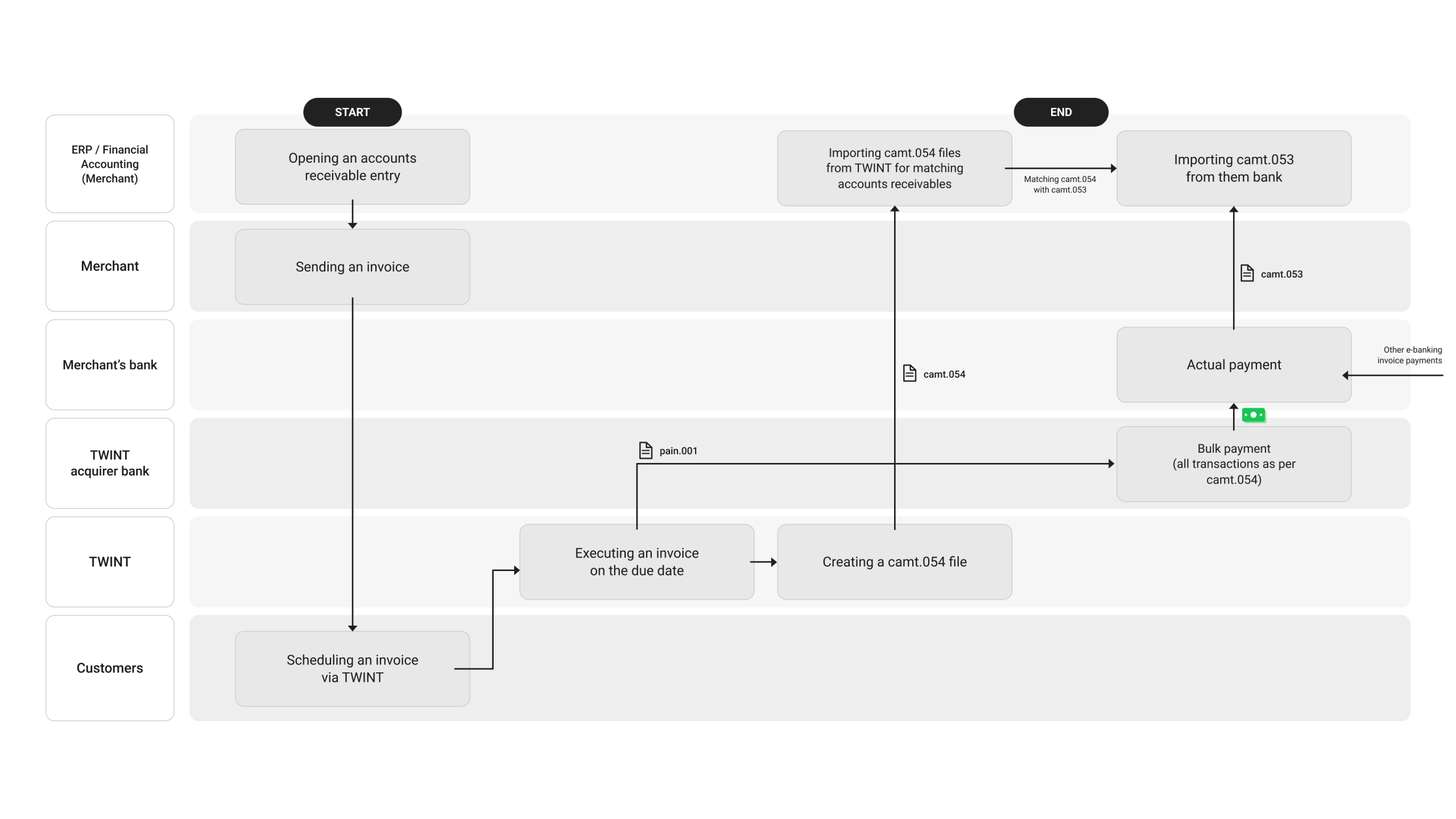
Payment processing involves all parties concerned: the ERP/accounting system (biller), the biller, the biller’s bank, the TWINT acquirer bank, TWINT and the customer.
Step 1: invoice creation and dispatch
- The merchant’s ERP or financial accounting system opens a debtor item
- The merchant sends the invoice to the customer
Step 2: payment scheduling
- The customer receives the invoice and schedules the payment via the TWINT app
Step 3: execution on the due date
- TWINT executes the payment on the selected due date
- A camt.054 file is then created and made available via SFTP
- At the same time, a pain.001 payment order is sent to the TWINT acquirer bank
Step 4: collective payout
- The TWINT acquirer bank executes a collective payout that includes all transactions contained in the camt.054 file
- Additional e-banking invoice payments can also be included in the actual payout
Step 5: reconciliation of accounts receivable
- The merchant imports the camt.054 file from TWINT and the camt.053 file from the bank and reconciles them to ensure that all settled payments have actually been received
The camt.054 file contains all executed TWINT invoice transactions and serves as the basis for the reconciliation of accounts receivable in the accounting software. The file is generated automatically after each payment is executed and made available via the SFTP server.
An example of a camt.054 file is available for download here.
The SFTP server is the technical infrastructure through which TWINT automatically makes the camt.054 file available after each payment has been executed. The merchant can retrieve the files from there and import them directly into their accounting software.
The following steps are required to use the SFTP server:
- Setting up SFTP access as part of the TWINT onboarding process
- Configuration of the SFTP client with the access details provided (host, port, username, password)
- Regular retrieval of the camt.054 files which are made available from the specified directory on the server
The camt.054 file is automatically stored on the SFTP server after each payment has been executed and is available for download immediately after it has been created.
Detailed set-up instructions and the access details required will be provided as part of the onboarding process.
Would you like to offer TWINT as a payment option for your invoices?
Register now and let your customers pay quickly and easily with TWINT.